



Getting Started with Churnfree: A Step-by-Step Guide to Reduce Customer Churn

Losing customers is definitely bad for any kind of business. But not knowing why you are losing the customers and what you can do to reduce churn can be much more harmful in the long run.
That’s exactly the problem Churnfree solves. It’s an AI-powered customer retention tool that you can use to build cancellation flow with smart surveys, personalized offers, and feedback collection to save more customers and learn from the ones you can’t.
In this detailed step-by-step guide, we’ll walk you through everything you need to know about setting up Churnfree, starting from creating your account to building your first retention flow. Whether you have a micro-SaaS product or an enterprise subscription-based business, you can configure Churnfree and get it running in under 30 minutes to reduce churn.
Let’s get started.
Table of Contents
- Part 1: Create Your Churnfree Account
- Part 2: How Does Churnfree Help You Track and Reduce Customer Churn?
- Part 3: How to Connect a Payment Processor to Churnfree?
- Part 4: How to Create Personalized Retention Offers in Churnfree?
- Part 5: How to Build a Cancellation Flow to Reduce Churn?
- Part 6: Monitor Feedback
- Quick Recap: Your Churnfree Setup Checklist
- What Are the Best Practices to Reduce Churn and Improve Retention with Churnfree?
- Wrapping Up
Part 1: Create Your Churnfree Account
Open the official website of Churnfree.
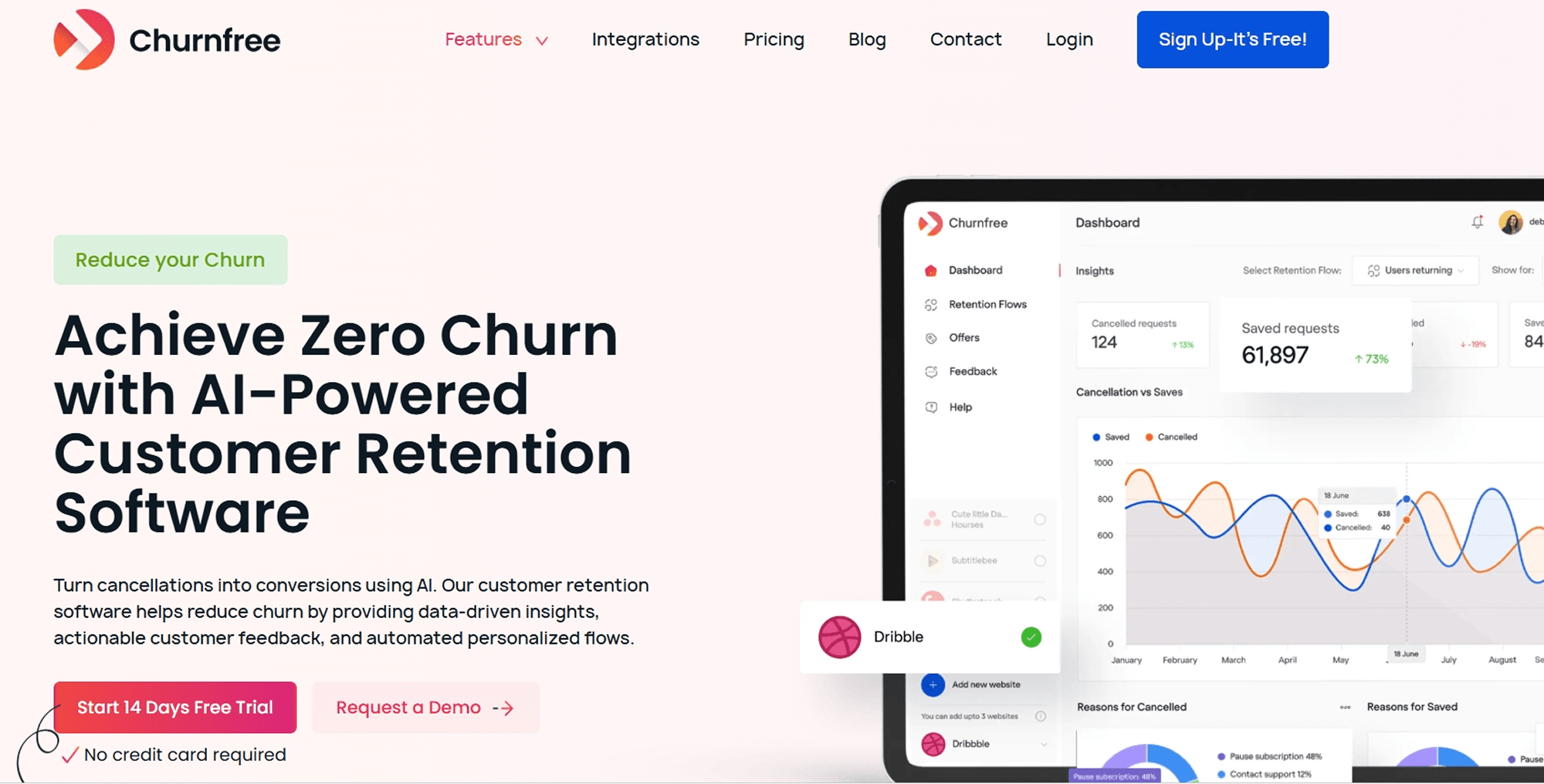
Click Sign Up. You’ve got two options here:
- Sign up with Google.
- Sign up with Email
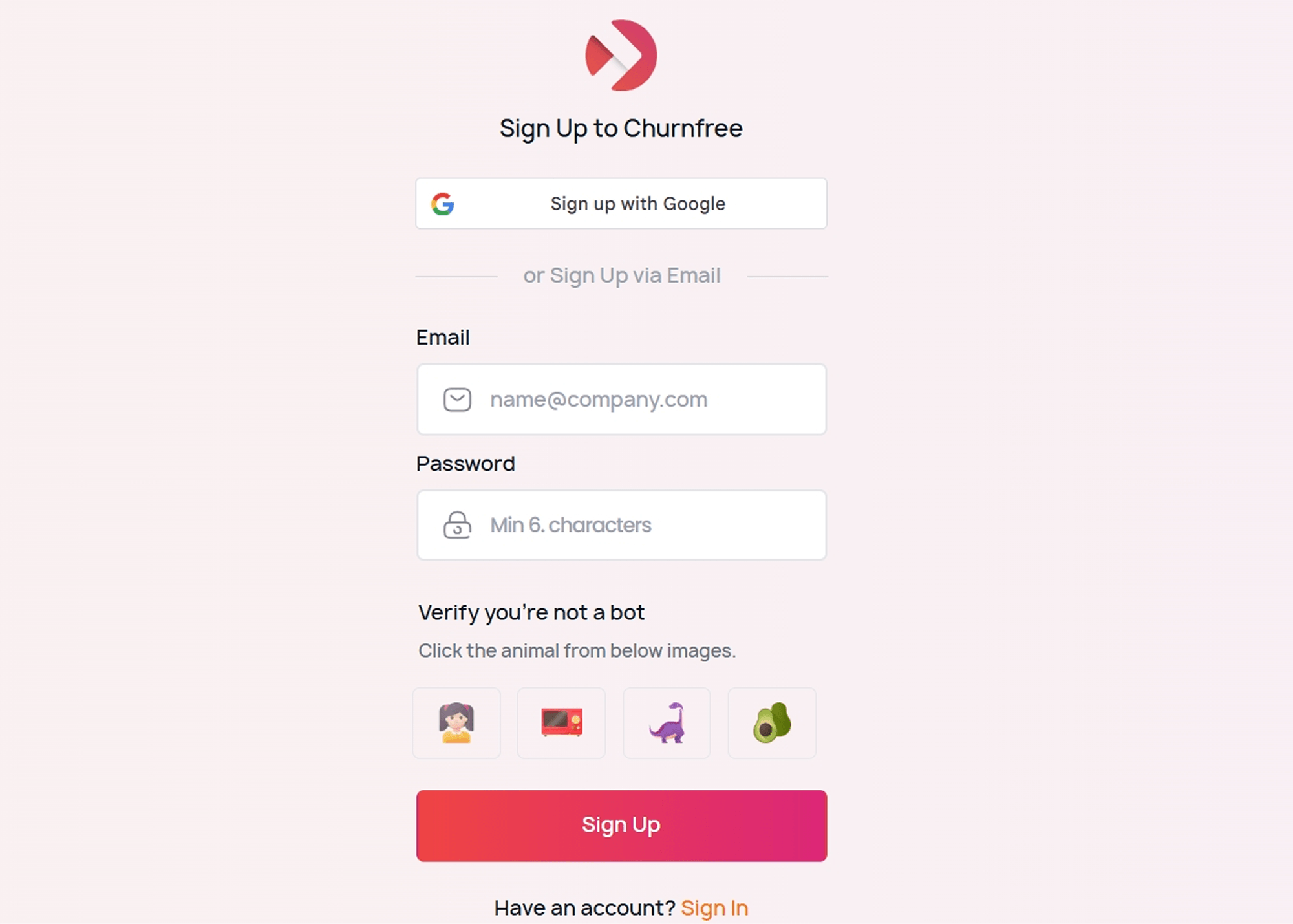
You can easily complete the CAPTCHA verification by clicking on the right image. Click the Sign Up button to complete the registration process.
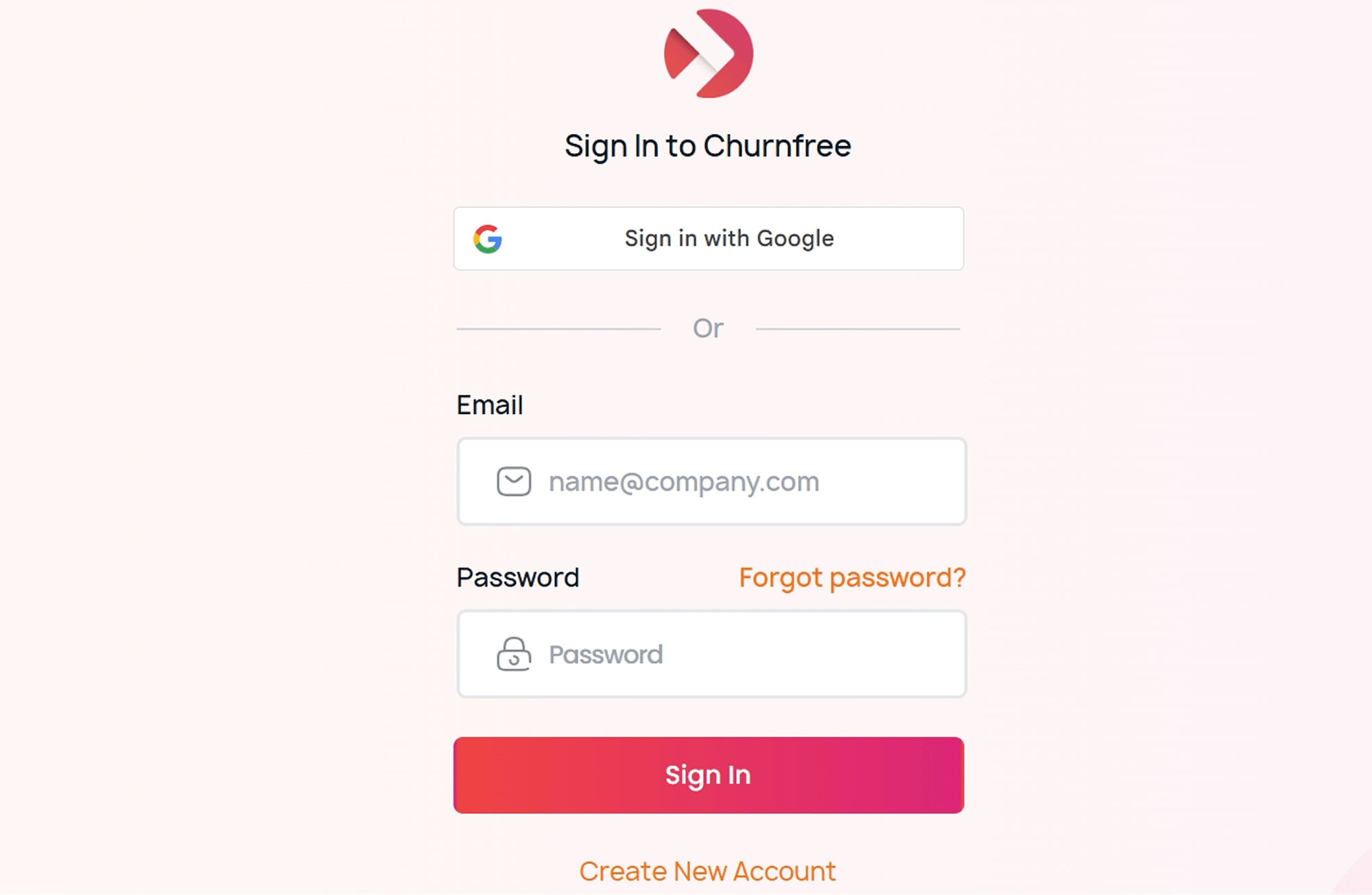
Alternatively, if you already have an account, you can click on the Sign In option to enter your credentials or log in with your Google account.
Also Read: What Does Churn Mean in Business?
Part 2: How Does Churnfree Help You Track and Reduce Customer Churn?
Churnfree is a no-code platform, so anyone can use it through the user-friendly interface without having any coding or technical skills. Once you sign-in to Churnfree, you will find multiple options on the dashboard.
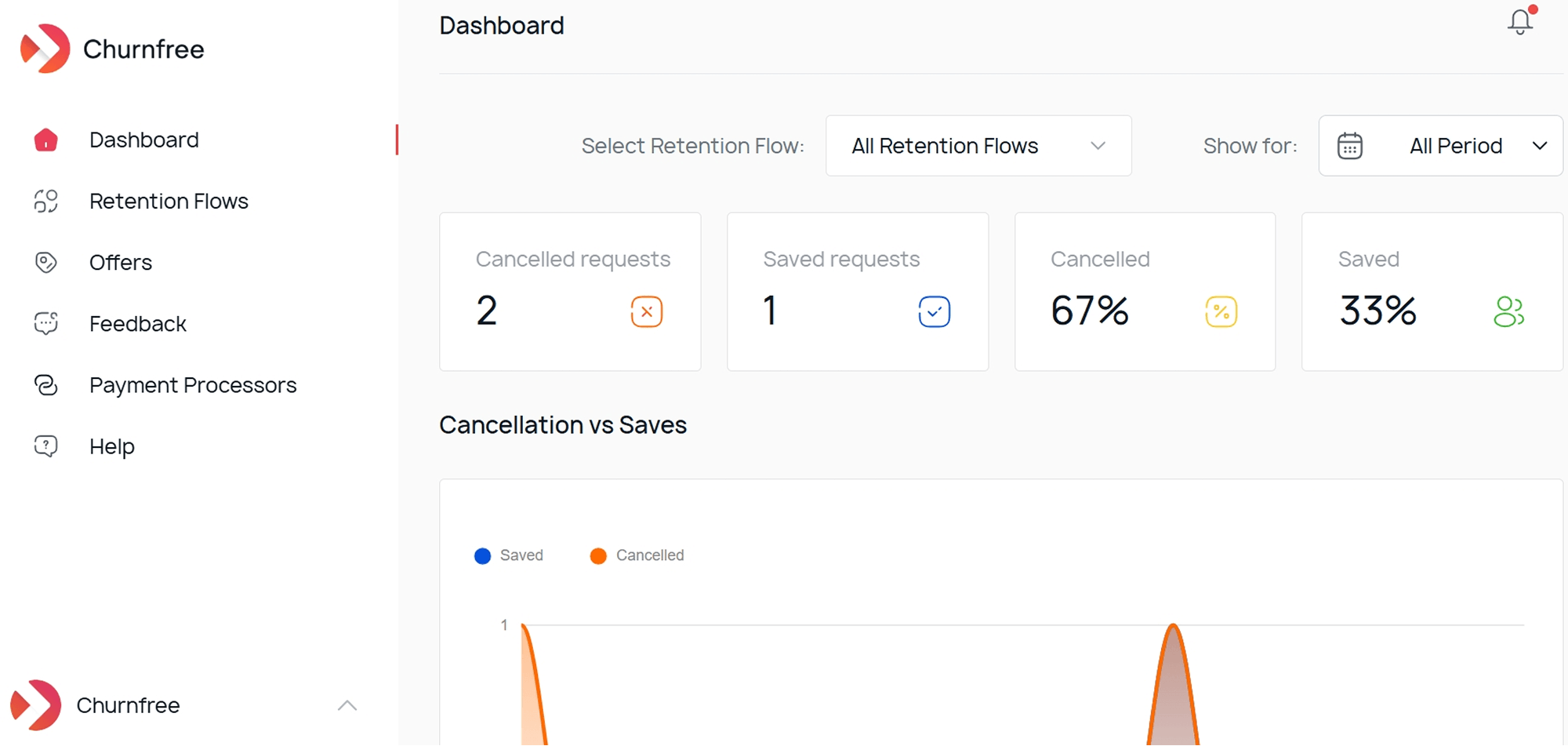
At the main menu, you’ll see real-time customer retention insights and analytics, that includes:
- Cancelled Requests: Total number of users who started the cancellation process.
- Saved Requests: Number of those users who did not cancel upon getting your offer.
- Cancelled Percentage: Percentage of users who completed the cancellation process.
- Saved Percentage: Your save/retention rate.
Other than the metrics, you’ll also get the Cancellation vs Saves visual chart that shows your retention performance over time. You can also filter by specific retention flows or time periods using the dropdowns at the top.
On the left sidebar, you’ll see navigation to different features: Dashboard, Retention Flows, Offers, Feedback, Payment Processors, and Help.
Related: Top 11 Customer Retention Metrics | Measure Success KPIs
Part 3: How to Connect a Payment Processor to Churnfree?
Before building your first retention flow, it is recommended that you connect your payment processor. This allows Churnfree to apply discounts through personalized offers and manage cancellations on your behalf automatically to maximize churn prevention efforts.
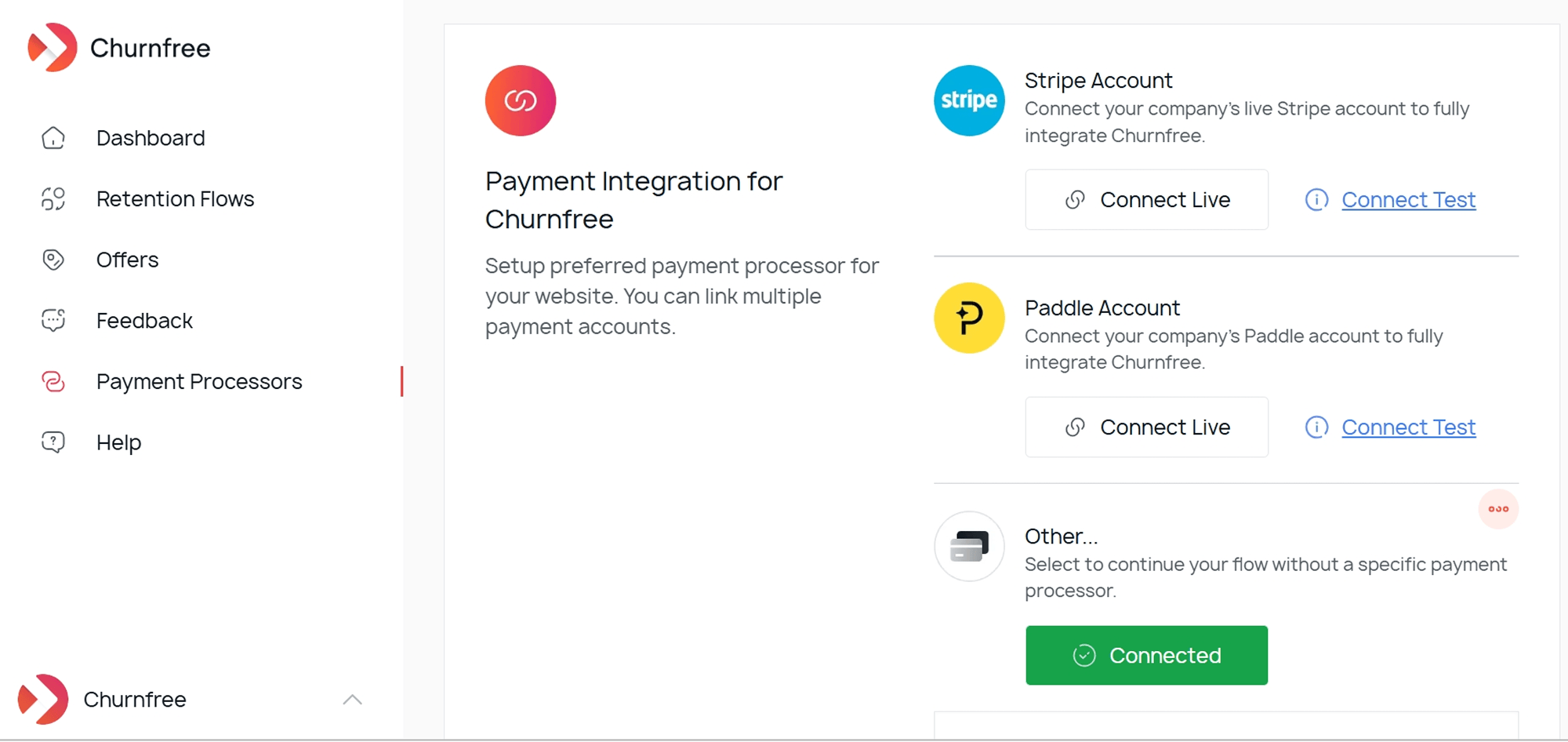
Open the Payment Processors section in the left sidebar. You’ll see three options:
- Stripe: Connect your company’s Stripe account for full integration.
- Paddle: Connect your business’s Paddle account if that’s your primary billing platform.
- Other: If you are using another processor, you can choose this option.
Each option has a Connect Live button for integration and a Connect Test button for testing environments.
Overall, you need at least one payment method connected to make your retention flows functional and make the best use of Churnfree.
Part 4: How to Create Personalized Retention Offers in Churnfree?
Pro tip: You should create your personalized customer retention offers before you create your retention flow. This will save you some time and confusion while building the actual retention flow. Moreover, you’ll be able to easily select from available offers on the retention flow dashboard.
Here’s how you can create personalized offers in Churnfree:
Step 1: Open Offers Section
Click Offers in the left sidebar and choose the Create new Offer button.
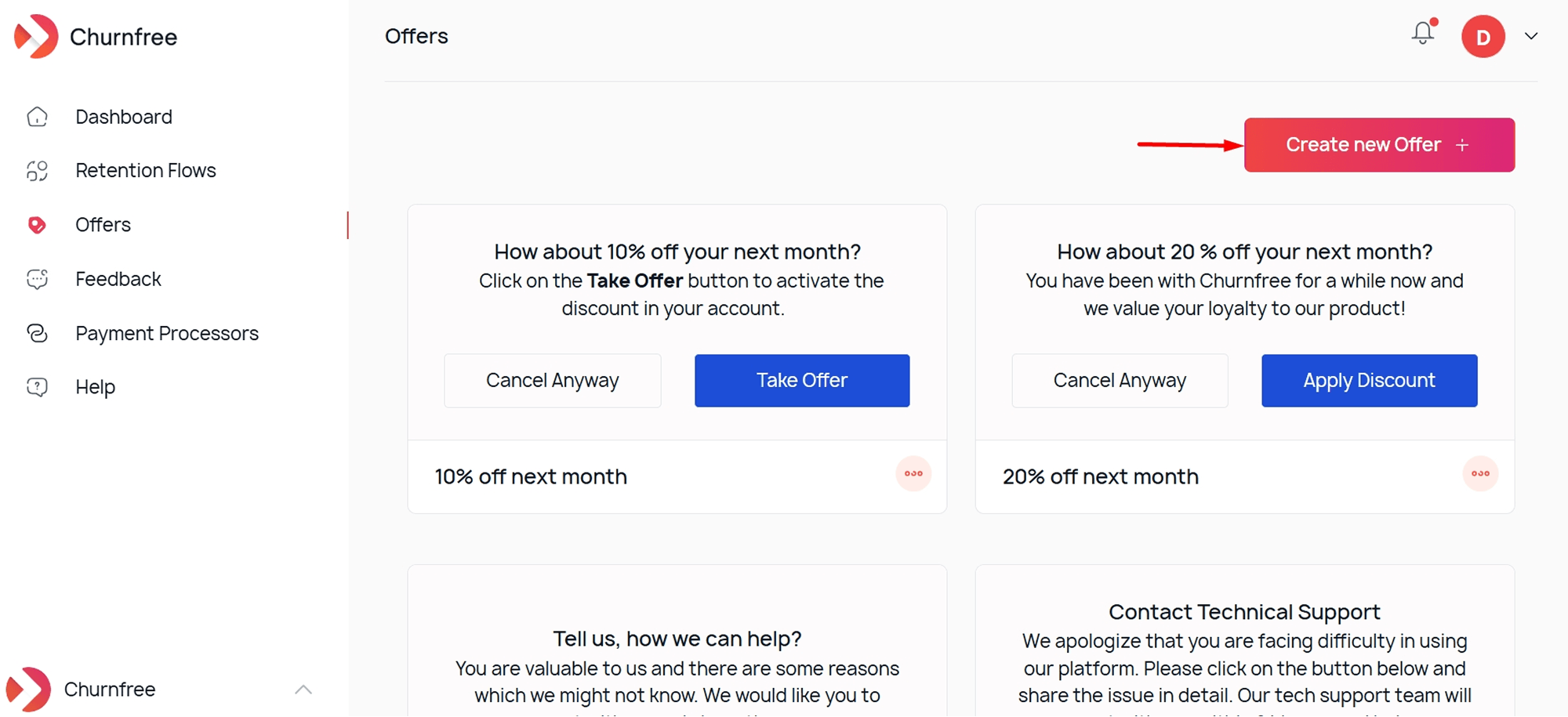
Step 2: Configure Your Offer
Configure your offer by filling these attributes:
- Page URL: Set the custom page URL where you want the offer to be activated (e.g., https://sitename.com/cancellation).
- Content: Write compelling text for the heading and body text.
- Buttons: Customize the call-to-action buttons
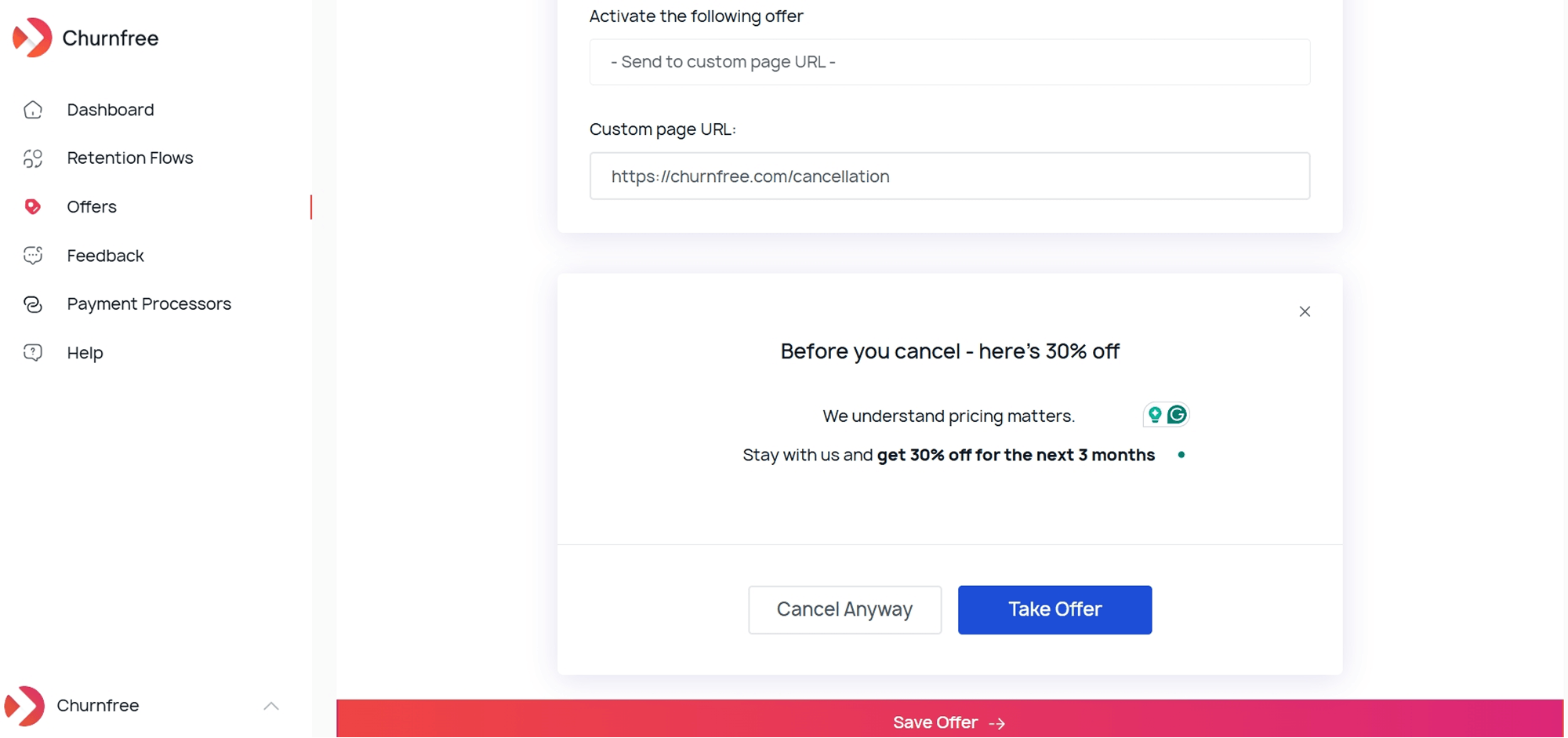
- Click Save Offer when you have completed your offer.
Note: At this stage, you don’t have to worry about colors and button styling, as you can fine-tune the design later when building your retention flow.
Related: Personalized Communication to Retain Clients
Part 5: How to Build a Cancellation Flow to Reduce Churn?
Now, your Churnfree account is fully ready to create a customer cancellation retention flow to reduce churn.
Step 1: Choose to Create a New Flow
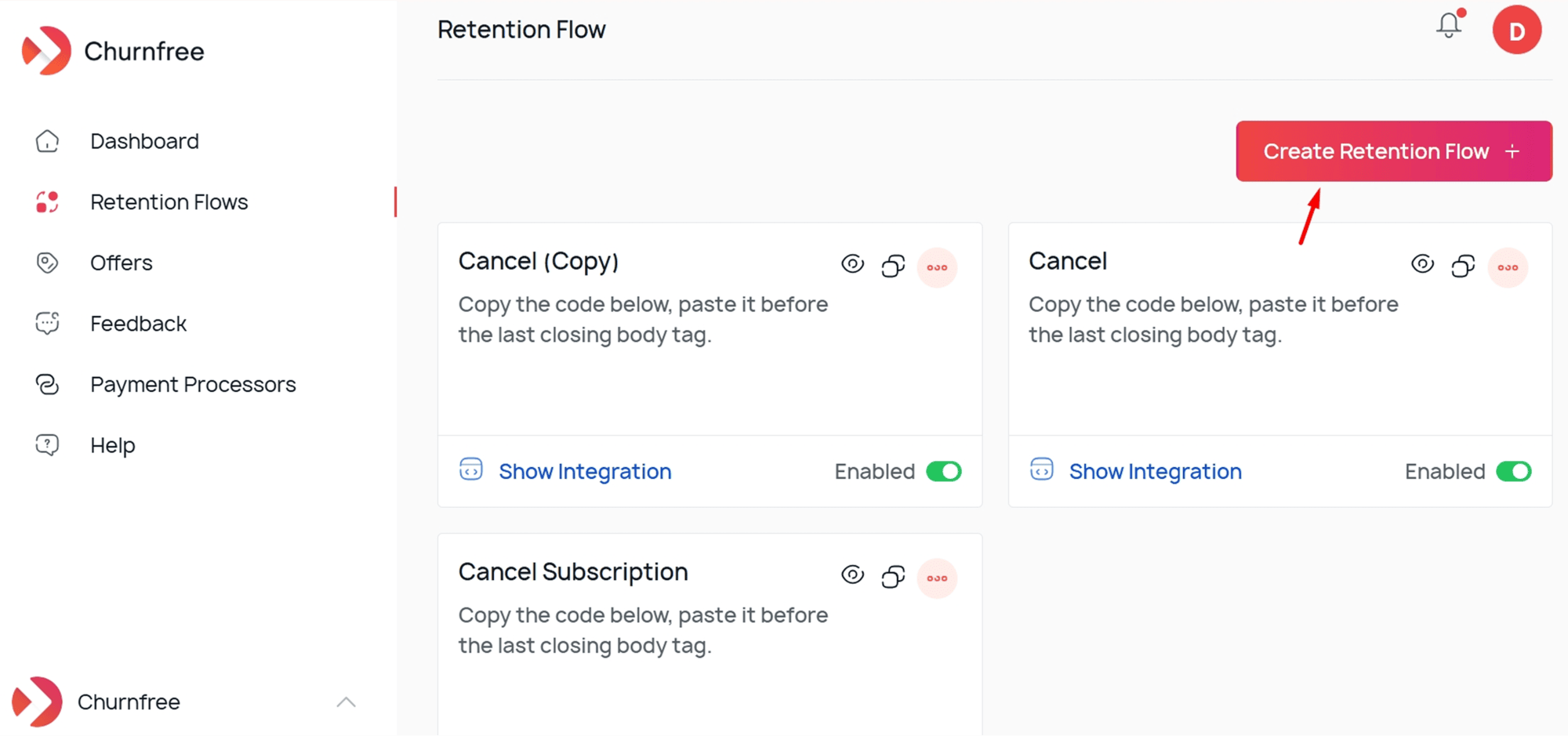
Open the Retention Flows section from the sidebar. You’ll see all the existing cancel flows listed as cards. Each of these cards has the option to preview, copy, edit, and delete.
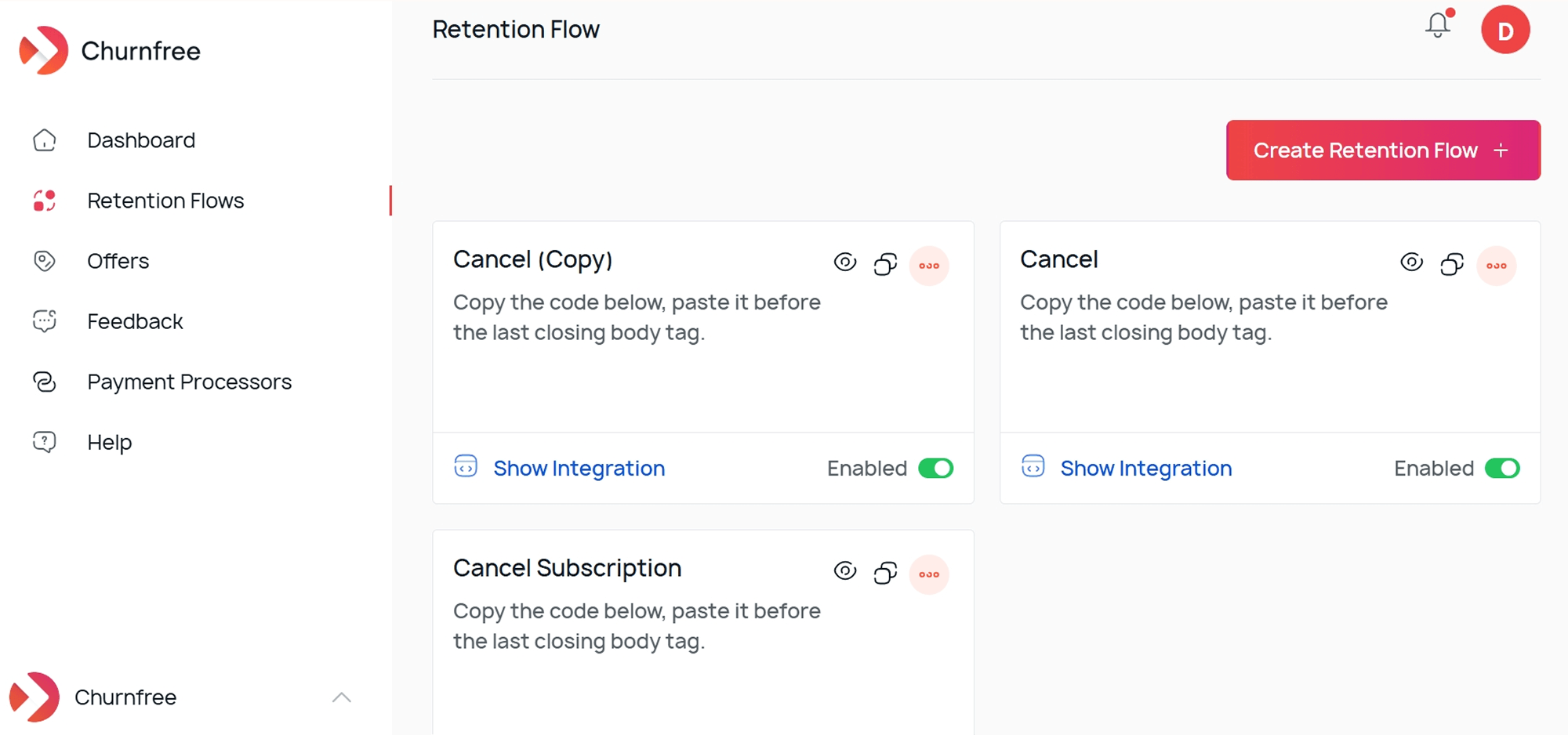
Click on the Create Retention Flow button in the top-right corner.
Step 2: Name Your Flow
Write a descriptive name for your cancellation flow, such as “Maximize Retention.” This is just for your internal reference, so you can use any name to stay organized.
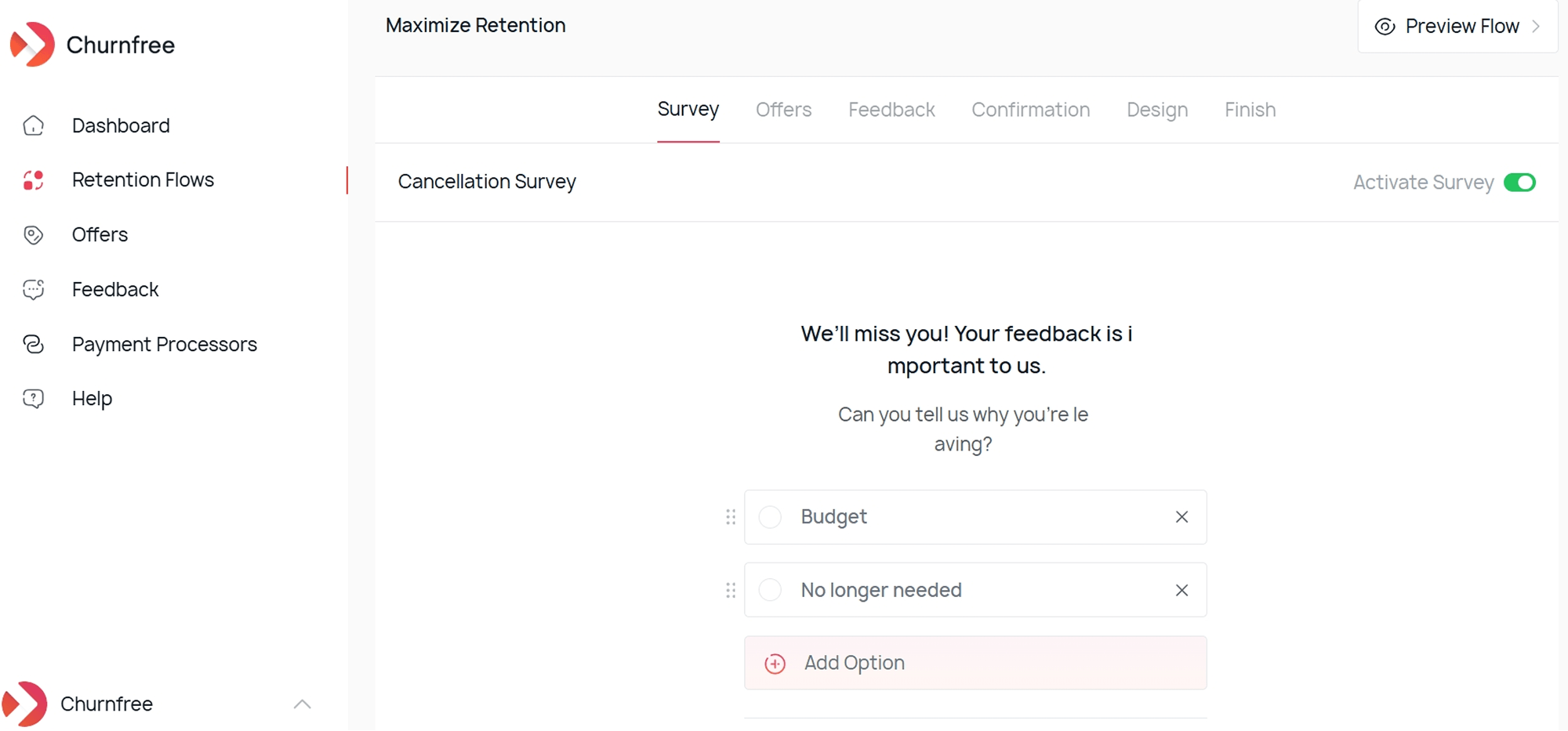
Once the flow is created, you’ll see six different tabs in the flow builder: Survey, Offers, Feedback, Confirmation, Design, and Finish.
Step 3: Configure the Survey
You build the cancellation questionnaire that your users see in the Survey tab. This provides you with a golden opportunity to understand why they’re leaving. You can toggle the Activate Survey switch on the right to enable or disable this step in the cancellation flow.
The survey comes with a default heading and subheading, but you can fully customize them as per your requirements.
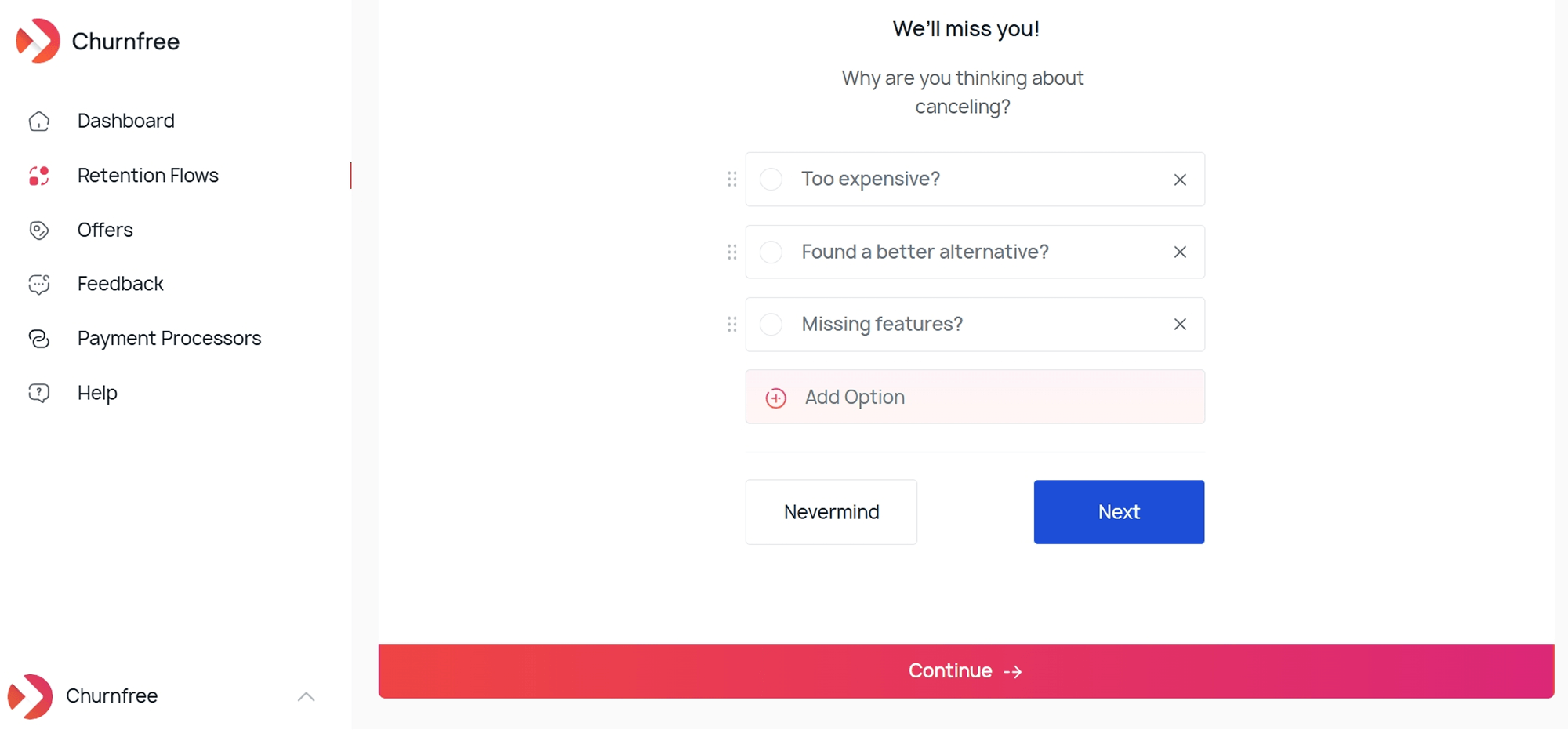
Use the Add Option button to create survey choices. You can choose some options here that suit your specific tool and customers’ pain points, such as an expensive pricing structure, a lack of features, etc.
You can drag each option (grip dots on the left), and reorder them as per your preference. Similarly, you can also remove any option by clicking the X next to it.
At the bottom, there are two buttons: Nevermind (to allow the user to abort cancellation) and Next (to continue the flow).
Step 4: Map Offers to Survey Responses
Move on to the Offers tab. This is where the magic happens, as you can now connect each survey response to a specific offer you created before.
For example:
- If a user selects “Too expensive?”, you can show them a discount offer (20% off next month)
- If they choose “Found a better alternative?”, you can present a comparison or a unique value proposition.
- If they pick “Missing features?”, you can share your roadmap or connect them with your product team to get more detailed feedback.
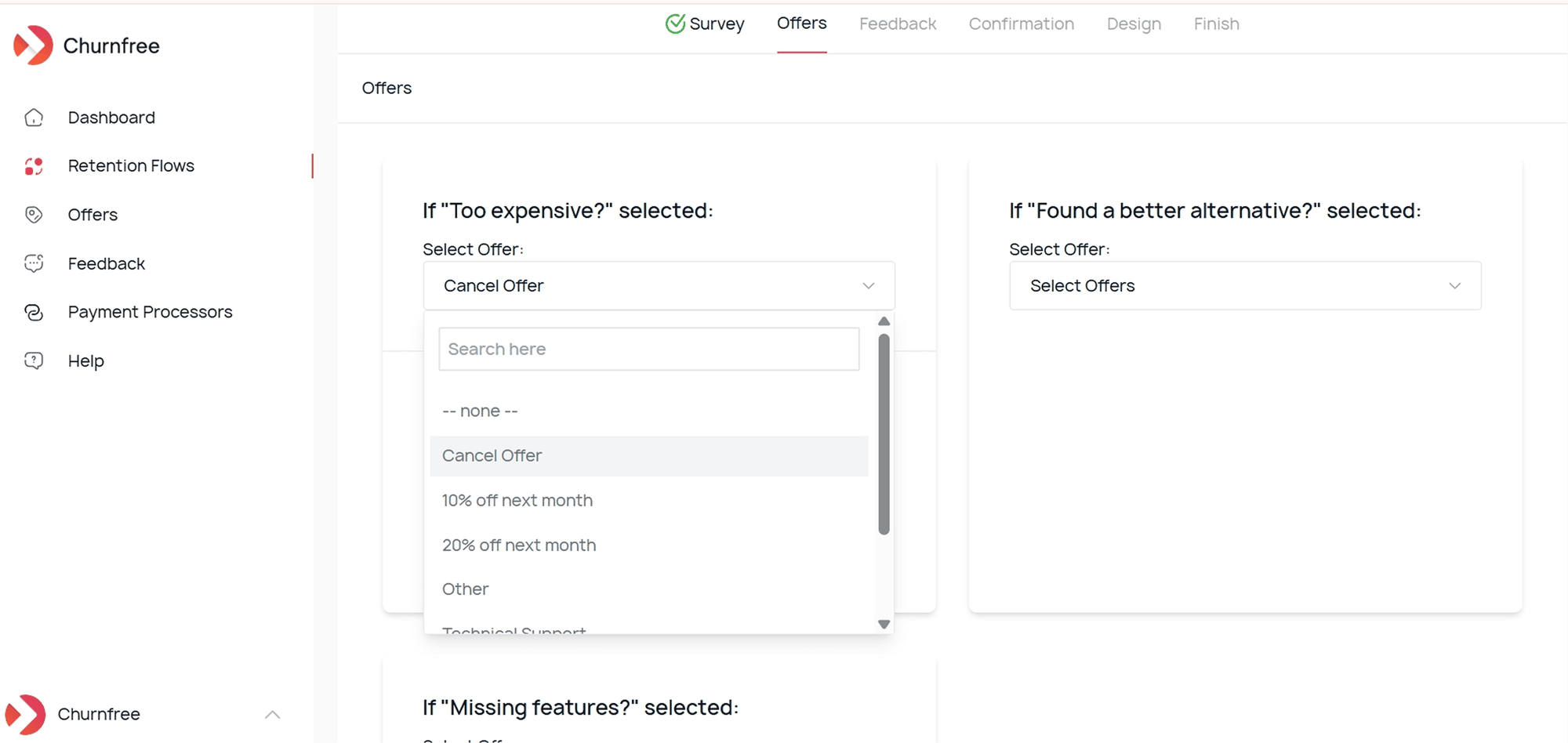
Each survey option has its own dropdown where you can select from the offers you created earlier. The dropdown includes all your saved offers plus a “none” option if you don’t want to show an offer for that particular reason. The option to create a new offer is present on the right side, so you can use that to navigate to the offer section and create new offers.
Step 5: Set Up Feedback Collection
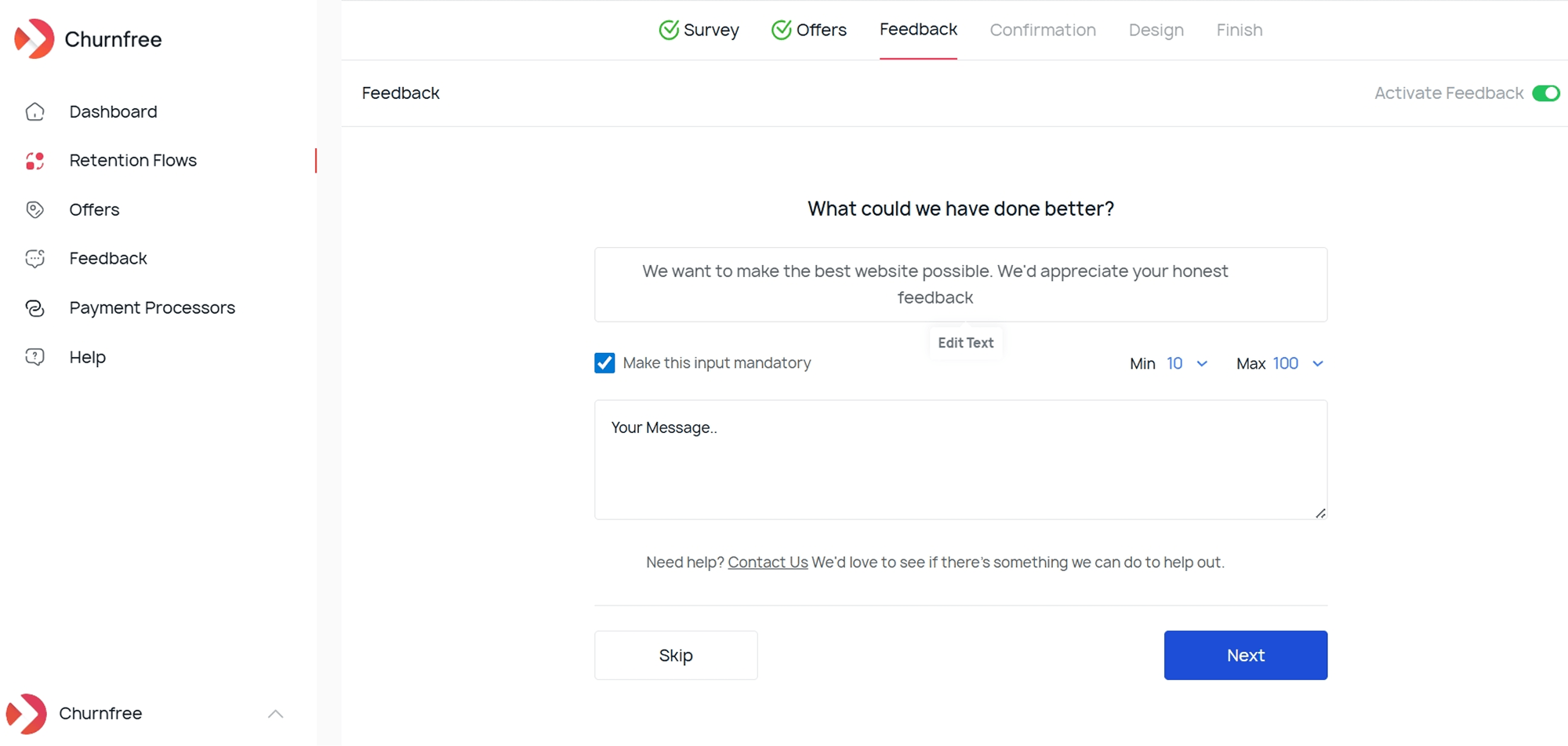
The Feedback tab is the step that lets you collect open-ended cancellation feedback from users before they finalize their cancellation. You have to toggle the Activate Feedback switch to enable this step in your cancellation flow.
Here’s what you can customize:
- Heading
- Description text
- Make input mandatory: Toggle this checkbox to require feedback before proceeding.
- Character limits: Set minimum (e.g., 10) and maximum (e.g., 100) character counts.
- Contact Us link: Include a link at the bottom for users who might want to talk to someone directly.
The form includes a text area where users type their message, and two buttons: Skip (if feedback isn’t mandatory) and Next.
Step 6: Customize the Confirmation Page
The Confirmation tab is the final checkpoint before a user actually cancels. It’s your last opportunity to give them pause and get confirmation if they actually want to churn.
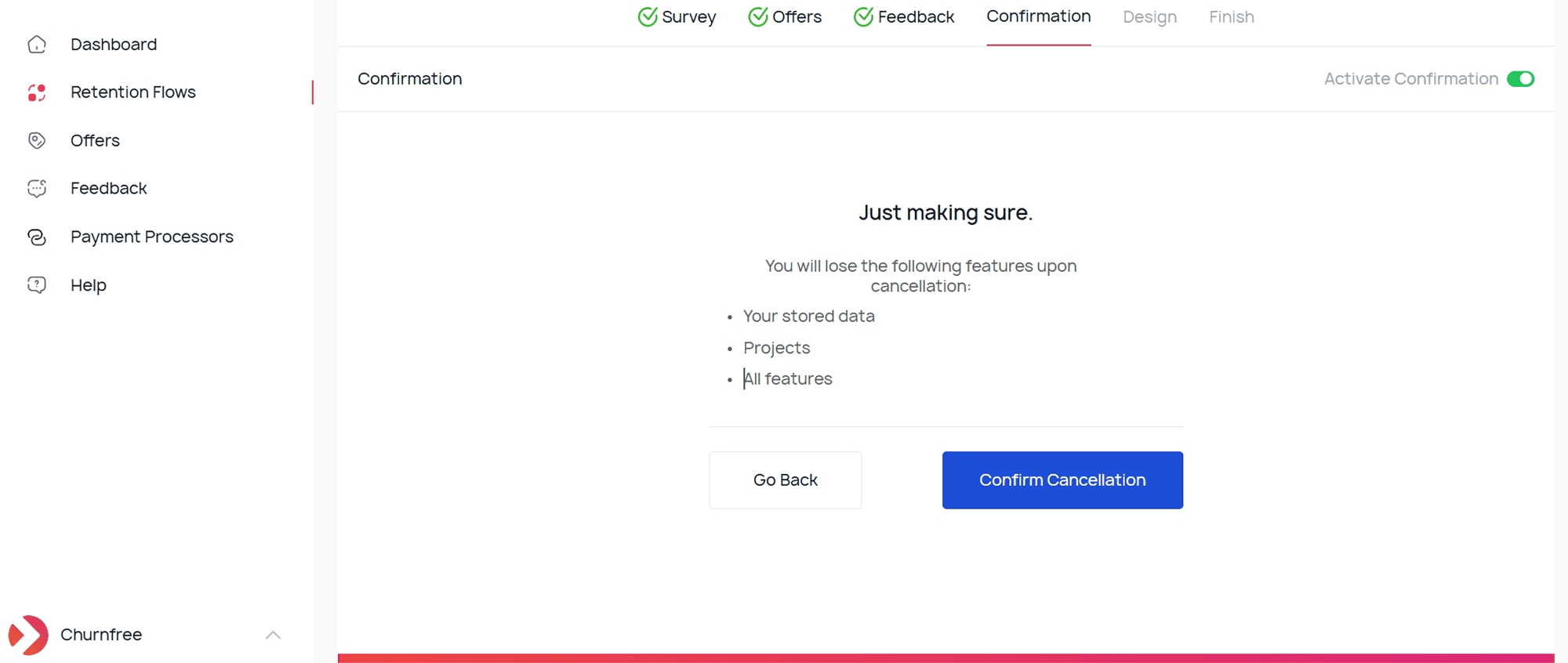
You can fully edit this text to highlight whatever’s most relevant to your product. Below the list, there are two buttons that you can customize, such as: Go Back (which can take the user back and retain them) and Confirm Cancellation.
Step 7: Customize the Design
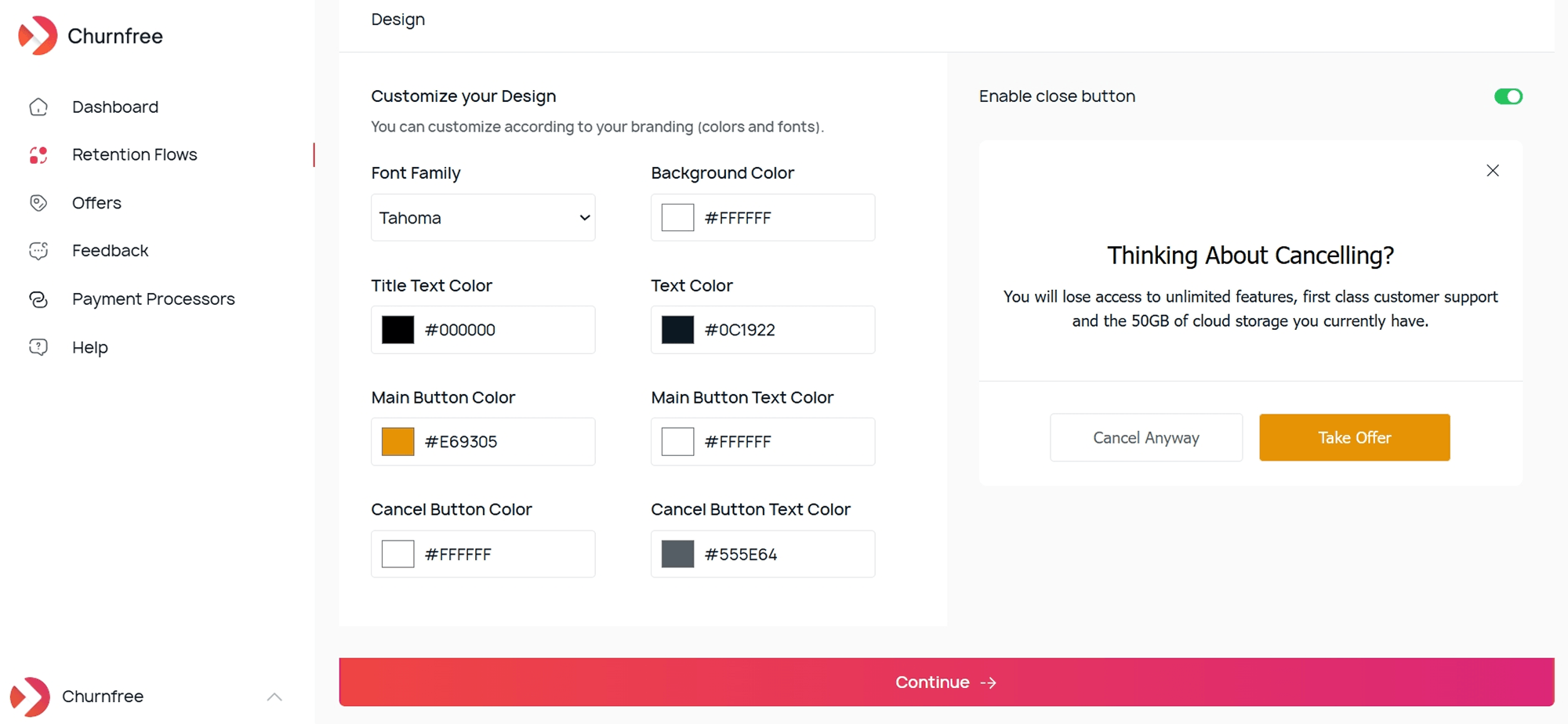
Churnfree provides you with multiple options to customize the overall design and appearance of your retention flow. This includes choosing:
- Font family
- Background color
- Title text color
- Text color
- Main button color
- Main button text color
- Cancel button color
- Cancel button text color
You can use the toggle button to enable or disable the close button. The live preview on the right side of the screen updates in real time as you make changes, so you can see exactly how your retention flow will look to customers.
Step 8: Preview Retention Flow
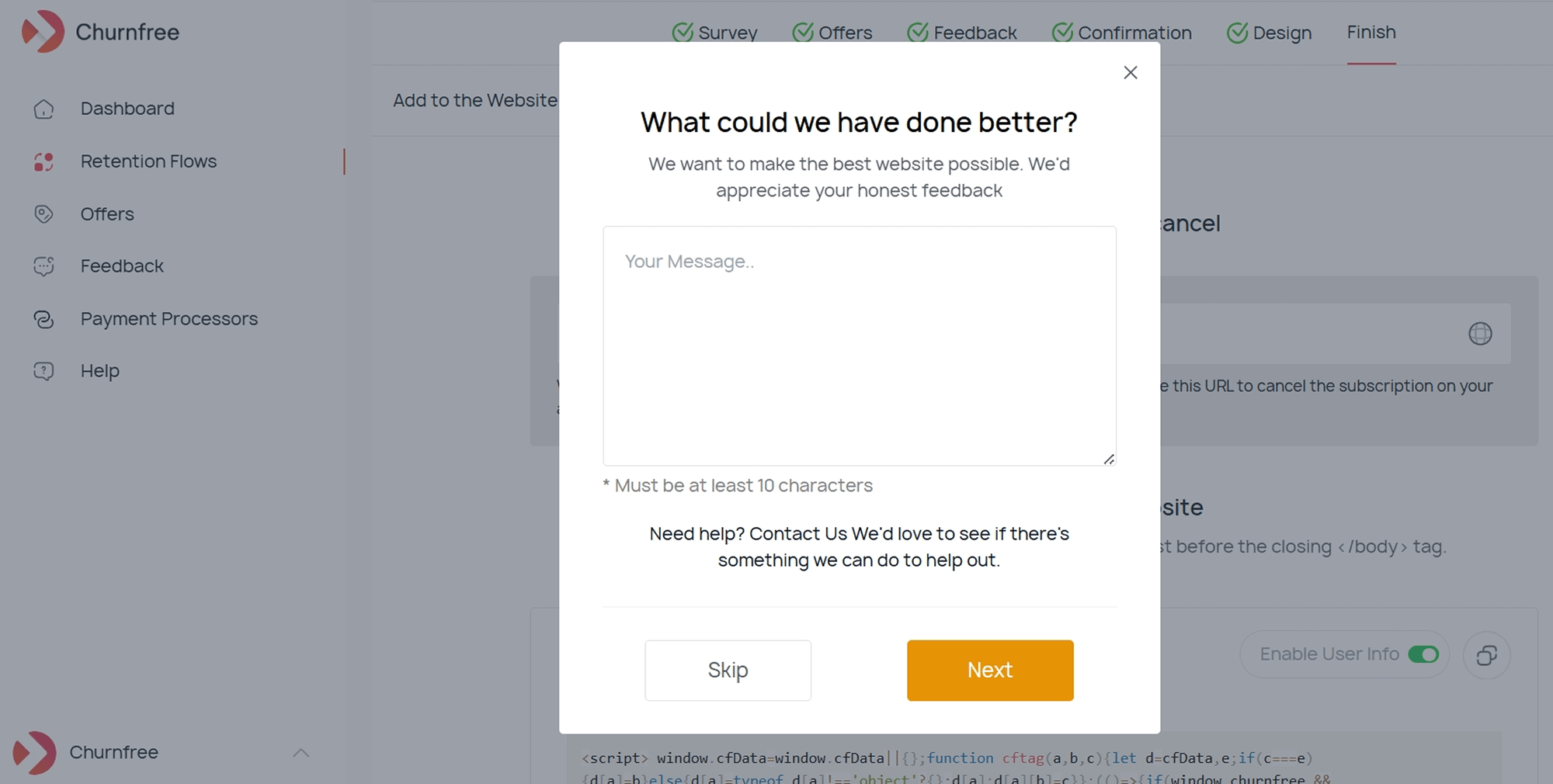
Keep in mind that the changes you see on the Design tab will only be related to the design options. The content you see in preview is added by default.
If you want to see the design changes on your actual retention flow, you can click on the Preview Flow button in the top right corner.
Step 9: Embed Code
Once you’ve configured all the steps, head to the Finish tab. This is where you get the code to install Churnfree on your website. Don’t worry, you just have to copy–paste the script and don’t need any technical skills for this part.
Add the Churnfree Script
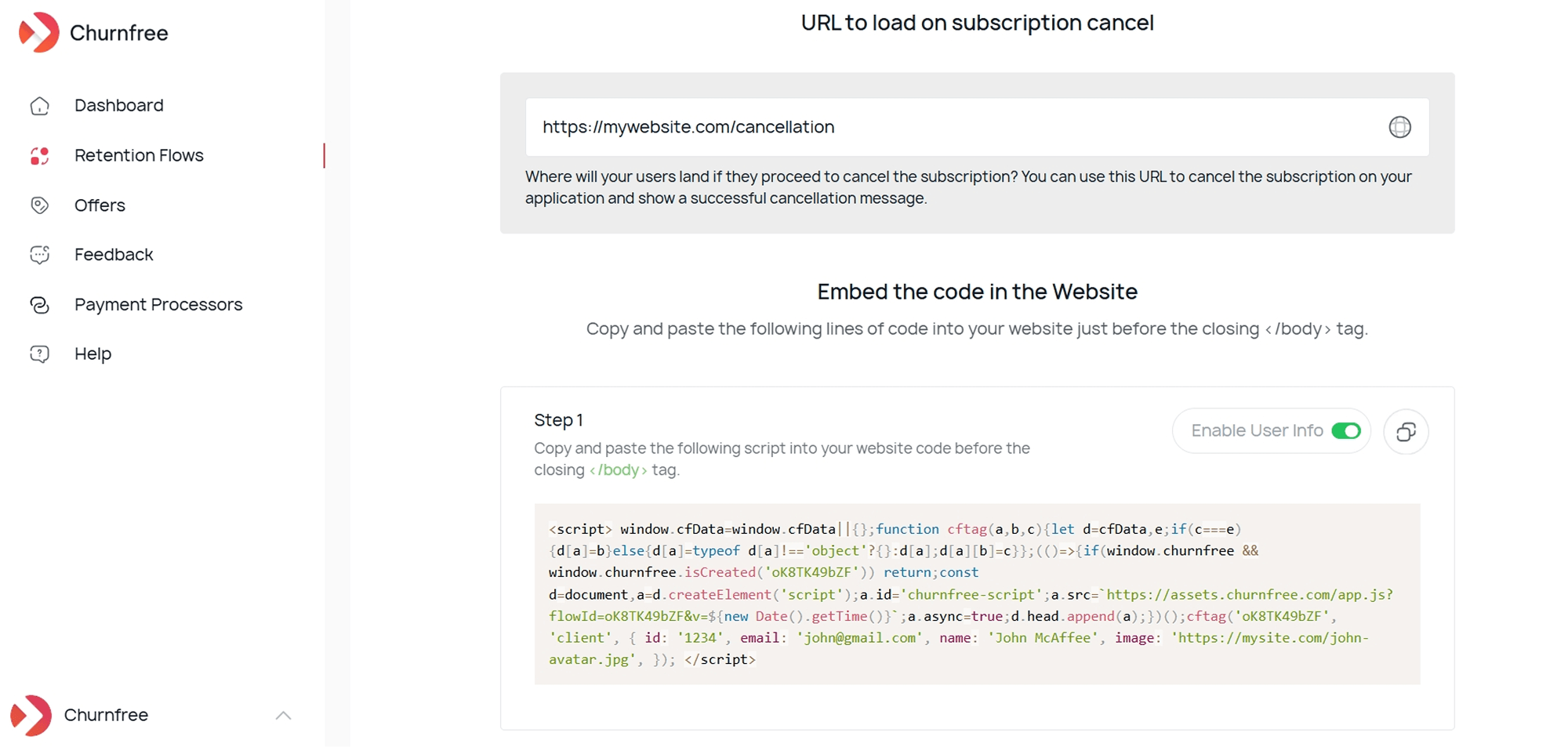
First of all, add the URL where you want the users to land when they are going through the cancellation process.
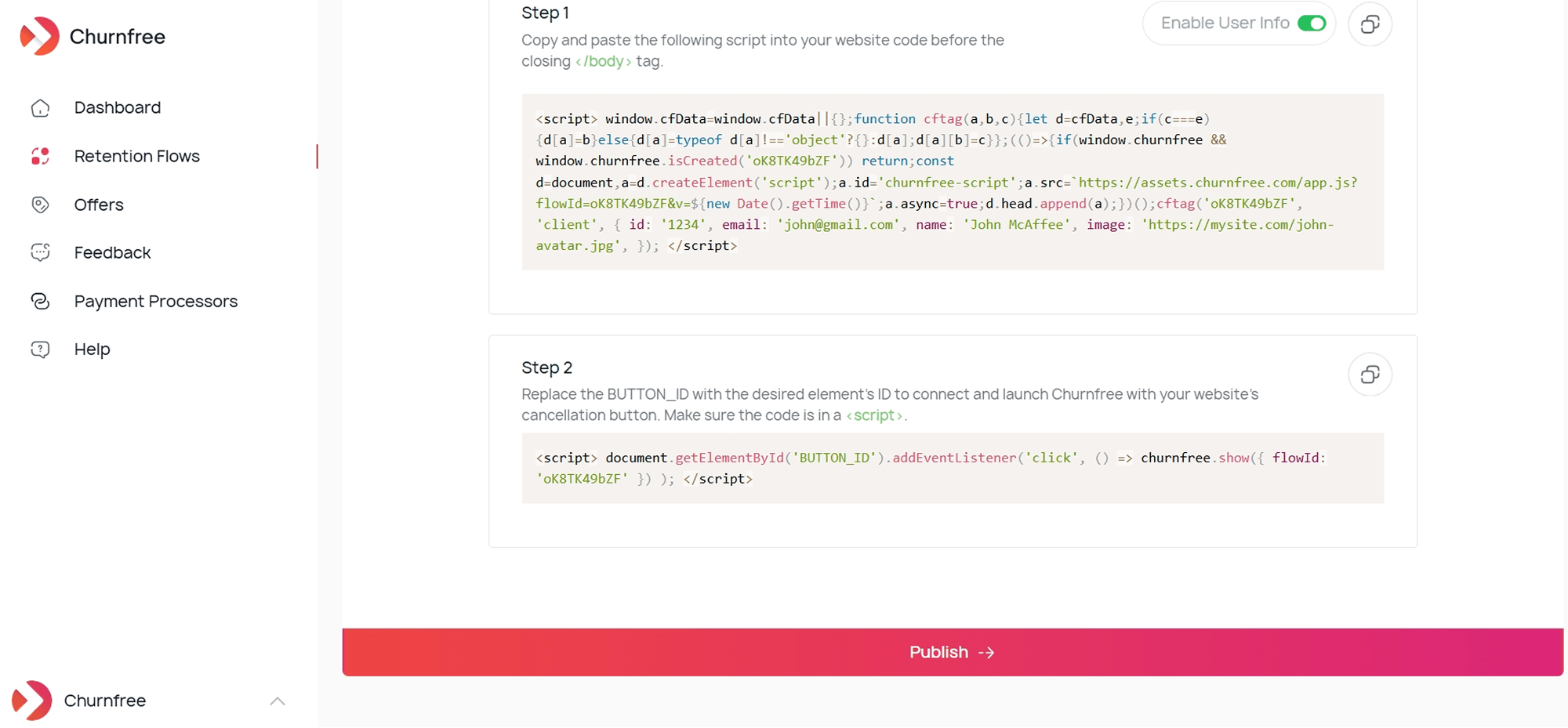
Copy the JavaScript snippet and paste it into your website’s code just before the closing **</body>** tag. This script will load the Churnfree widget on your site with this.
You’ll also see an Enable User Info toggle. You can turn this on if you want to pass user details (like their ID, email, name, and avatar) to Churnfree. This is helpful to collect feedback and see who’s cancelling in your feedback reports.
Connect to Your Cancel Button
The second code snippet connects Churnfree to your existing cancellation button. Here you just have to replace BUTTON_ID with the actual HTML element ID of your website’s cancel button. As a result, when a user clicks it, instead of going straight to existing cancellation, they’ll see your retention flow created with Churnfree.
Once both snippets are in place, click Publish to make your flow live and launch your churn prevention campaign!
Part 6: Monitor Feedback
After making your retention flow live and collecting some data from users, you can view it by opening the Feedback section from the sidebar on the Churnfree dashboard. In the Feedback section, you can view what your users are writing in the exit survey.
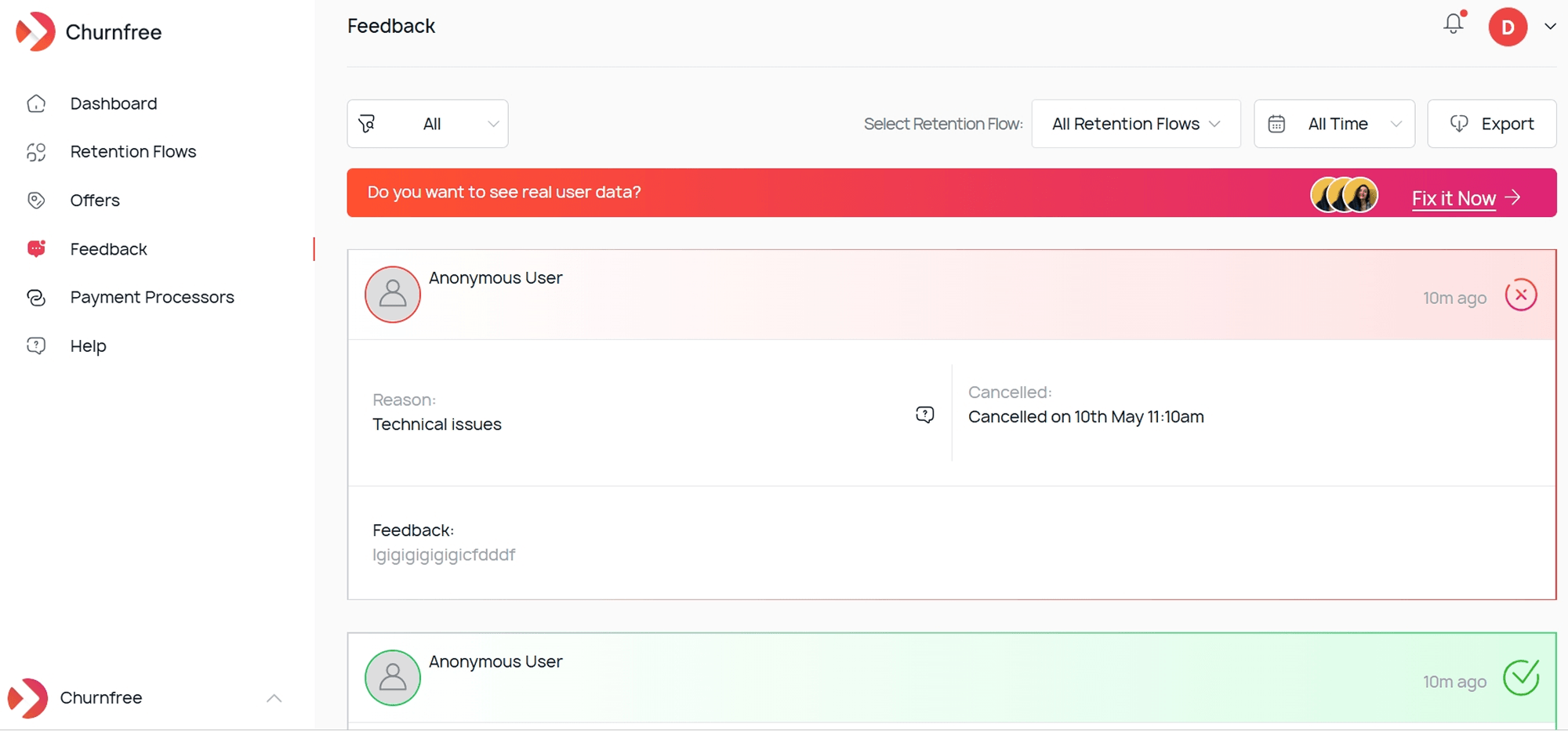
The Feedback dashboard shows a list of cancellation entries with the following information:
- User identity: Displayed as the user name/email. If you disabled the user info toggle, you’ll see “Anonymous User.”
- Reason: Survey option selected by user (e.g., “Too Expensive”).
- Cancellation date and time
- Feedback text: User’s open-ended response to your exit survey question.
- Status indicator: A red icon to represent cancelled users and a green icon for saved users.
With time, you are likely to collect a lot of feedback. In such a situation, you can filter results by specific retention flows, time periods, or feedback type using the dropdowns at the top to view the collected data more closely.
Moreover, there’s also an Export button to download all feedback data in a properly formatted spreadsheet for deeper analysis and record keeping.
Quick Recap: Your Churnfree Setup Checklist
Here’s a quick summary of everything we covered to help you set up Churnfree and maximize retention:
- Sign up for a Churnfree account using Google or email
- Connect a payment processor through integrations with platforms like Stripe, Paddle, or others.
- Create your offers to provide discounts, support redirects, or custom pages to users.
- Build a retention flow by configuring the survey, mapping offers to responses for customer personalization, setting up feedback collection, and customizing the confirmation page.
- Embed the code on your website and connect it to your cancel button to trigger the personalized cancellation flow automatically.
- Monitor feedback and improve your offers and exit survey’s messaging to reduce churn and improve retention.
What Are the Best Practices to Reduce Churn and Improve Retention with Churnfree?
Here are some tips to to help make the best use of Churnfree and reduce churn and maximize retention:
- Start simple. Your first retention flow does not have to be perfect. You can start with simple 3-4 survey options and limited offers. Collect the data for a few weeks and then optimize your flows.
- Match your offers properly. If someone says your product is too expensive, offering a discount makes sense. But if they are leaving because of a missing feature, you should connect them with the product team. So, always match your offers to cancellation reasons.
- Keep your survey short. About 3-5 cancellation reasons are enough, as too many options can overwhelm users and harm your data in the long run.
- Use the feedback loop. The open-ended feedback you collect is vital for product improvement. You should read the feedback data regularly and use it to drive your product decisions.
- A/B test your offers. It is recommended that you create multiple retention flows with different offers and see which ones have the highest retention rate. In Churnfree, you can easily duplicate and modify flows from time to time for the best results.
Also Read: How to Reduce Customer Churn?
Wrapping Up
The bottom line is that customer churn is inevitable in every subscription-based business and SaaS tool. However, a significant part of churn is preventable with a reliable customer retention tool like Churnfree.
By following the steps discussed above, you can build an effective system to listen to your customers and respond automatically with the right offer in real-time. It also helps get the data you need to keep improving your product.
The overall process can easily be completed within 30 minutes, and you can boost ROI from the very first saved customer due to lower churn and higher retention.
So, are you ready to start reducing churn? Sign up for Churnfree and build your first retention flow today.